How to remove your name from a PDF
You cleared the Author field and the PDF still names you. Here is where else your name hides, how to keep it out when you export, and how to check a finished file before you send it.
The short answer
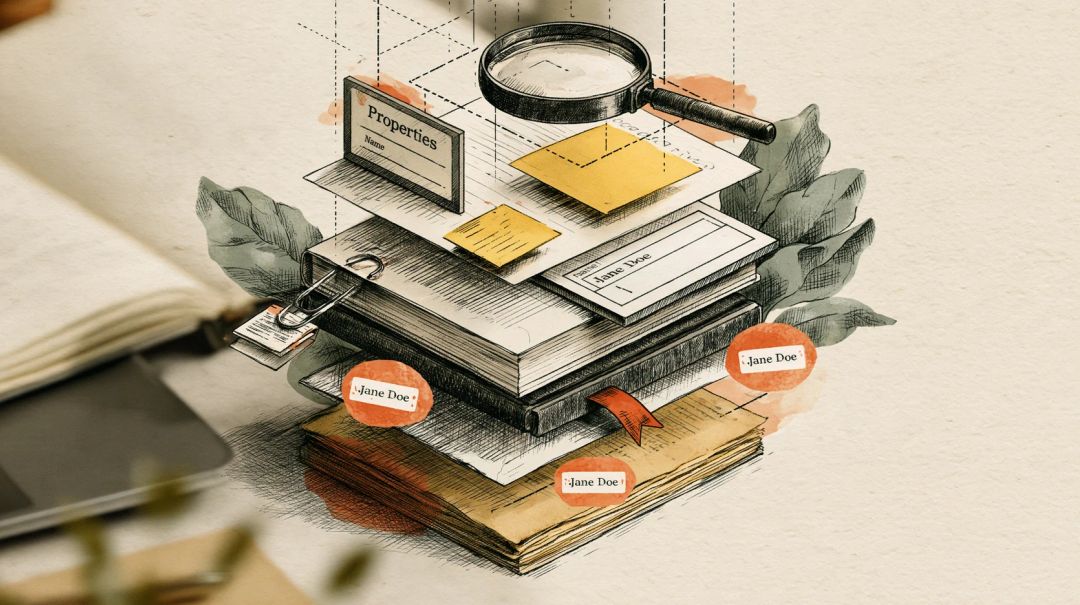
You rarely type your own name into a PDF. Word, LibreOffice and most other editors take it from your account or app settings and write it into the document properties when you export. Delete it from the Author field, and there is often a second copy in the XMP metadata, a hidden block of data that some viewers read and others ignore. Comments carry their author’s name too, and so can form fields, attachments and bookmarks.
So the job has three parts: export without the name where you can, clean the finished PDF with a tool that rewrites the whole file, and then check the result in more than one viewer.
Where your name can hide
- Author in the document properties. This is the field everyone knows about.
- A second copy in XMP. Since PDF 1.4, a file can store its properties twice: in the original document information dictionary and in an XML packet called XMP. The PDF 2.0 standard mostly retires the old dictionary in favour of XMP, so newer tools increasingly read the XMP copy. Clear one, and the other may still name you.
- Title. Often your document’s title, sometimes the original file name, such as “Microsoft Word - jdoe_offer_v3.docx”.
- Comments and highlights. Every sticky note, highlight and drawing records who made it. Acrobat, for example, uses your login name by default.
- Form fields. A name typed into a field stays there as its value.
- Attachments. Files embedded in the PDF keep their own names and contents.
- Bookmarks. LibreOffice turns headings into bookmarks, so a heading like “Signed by Jane Doe” becomes one.
- Older versions inside the file. Some programs save a change by appending it to the end of the file. The PDF standard says so in plain words: the changes are added “leaving its original contents intact”. The earlier version, name and all, is still in there.
- The page itself and the file name. Headers, signature blocks, “Prepared by” lines. Metadata tools don’t touch any of these.
Why clearing the Author field isn’t enough
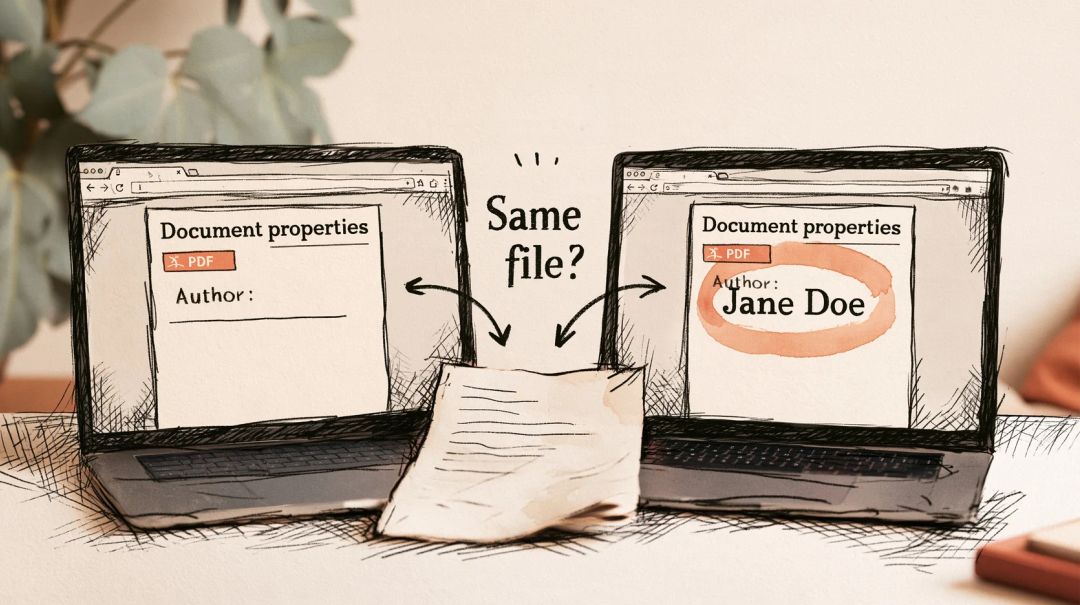
Two copies, two readers. The same file can show a different author depending on where you open it. Chrome’s built-in viewer reads only the old properties dictionary. Firefox, since version 141, prefers the XMP copy and falls back to the dictionary. In our test, we cleared Author with ExifTool and left the XMP copy alone. The engine behind Chrome’s viewer found no author. The engine behind Firefox’s found the full name.
Edits that only add. ExifTool, the command-line tool most guides recommend, writes changes to a PDF as an addition at the end. Its own documentation is frank about it: “old information is never actually deleted from the file”. We ran its delete-everything command, exiftool -all:all=, on our test file. It printed a warning, “ExifTool PDF edits are reversible. Deleted tags may be recovered!”, and Firefox’s viewer engine stopped showing an author. PDFium, the engine inside Chrome’s viewer, still read “Jane Doe” from the older version kept in the file. One more command, exiftool -PDF-update:all=, gave us back the original, byte for byte.
Keep your name out when you create the PDF
Cleaning the source document is easier than cleaning every PDF you make from it.
Microsoft Word
Word fills in Author from the User name under File > Options > Personalize your copy of Microsoft Office, the same name that labels your comments and tracked changes. If the PDF should not carry it:
- Inspect a copy of the document: File > Info > Check for Issues > Inspect Document, then Inspect. Click Remove All next to Document Properties and Personal Information, and next to Comments, Revisions, Versions, and Annotations if you don’t need them. Microsoft recommends doing this on a copy, because removed data can’t always be brought back.
- Export: File > Save a Copy, choose PDF, then More Options > Options. Clear Document properties.
- In the same dialog, under Publish what, choose Document, not Document showing markup. With markup, tracked changes and comment balloons are drawn on the page, usually with the reviewer’s name.
Word for Mac has a Remove personal information from this file on save checkbox in Review > Protect > Protect Document. It clears the author and company and renames comment authors to “Author”.
LibreOffice Writer
LibreOffice takes the author from Tools > Options > LibreOffice > User Data (on a Mac, LibreOffice > Preferences). In our test, LibreOffice 25.2 wrote that name twice in a plain PDF export: in the properties and in the XMP copy.
- To leave it out of one document, open File > Properties and clear Apply user data on the General tab before you export.
- Comments only go into the PDF if you tick Comments as PDF annotations or Comments in margin in the export dialog. Each exported comment carries its author’s name; in our test, the date as well.
- To anonymise comments for good, turn on Remove personal information on saving under Tools > Options > LibreOffice > Security > Options. When you save, comment authors become “Author1”, “Author2” and so on.
Other apps
Google Docs, Pages, design apps and phone scanners all write their own properties, and most don’t say which. Don’t guess: export once and run the check described below.
Remove your name from a finished PDF
In your browser
Remove PDF metadata deletes the document properties and the XMP copy in one go, along with the private data some apps attach to pages, then rewrites the whole file. That rewrite is the important part: older versions appended by other tools are not carried over. We ran the file ExifTool had “cleaned” through it, and the old name was gone from the viewers and from the file itself.
It leaves comments, form fields, attachments and page text alone, by design. For comments, use Flatten PDF with Forms and comments selected. It draws each note icon, highlight and form value into the page and deletes the comments themselves, author names included. Two things to know before you do it:
- The text inside a sticky note does not survive. Only the icon stays on the page.
- Comments saved without a drawn appearance, like the notes LibreOffice exports, get a standard note icon. If a comment can’t be drawn at all, it stays a comment and the tool tells you so.
If you still need the comments, keep the original file.
The order doesn’t matter. In our test, flatten first or metadata first gave the same result: no name left in the properties, the XMP copy or the comments. What remained was the page text, the form value (now part of the page) and the attachment. Both tools run on your device, and the PDF is not uploaded. You can check that yourself.
Neither tool removes attachments. Look for a paperclip in the sidebar of Acrobat Reader or Firefox. If there is a file there you didn’t mean to send, recreate the PDF without it, or use Acrobat Pro.
In Adobe Acrobat Pro
Acrobat Pro has a single command for all of this: All tools > Redact a PDF > Sanitize document, then Remove all. Adobe lists metadata, comments, attachments, hidden layers and form data among the things it clears. To keep some of them, choose Selectively remove instead and tick only what should go. Then save the file, ideally as a new copy.
To stop your login name appearing on new comments, open Menu > Preferences > Commenting (on a Mac, Acrobat > Preferences) and clear Always use Log-in Name for Author name.
The free Acrobat Reader shows the document properties, but you can’t edit them there.
Preview on a Mac
Tools > Show Inspector shows the author. Apple only documents editing keywords in Preview, so use it to look, not to clean.
ExifTool
If you already use ExifTool, finish with a full rewrite. Its documentation suggests qpdf --linearize in.pdf out.pdf; running the file through Remove PDF metadata has the same effect.
Check that your name is really gone
Open the cleaned copy, not the original, and give it five minutes:
- Document properties in two browsers. In Chrome, click ⋮ (More actions) > Document properties. In Firefox, open the viewer’s Tools menu (>>) > Document Properties. Look at Author, Title and the application fields. Chrome shows the old dictionary and Firefox prefers XMP, so between them you see both copies.
- Comments. Any comment left in the file still shows its author. Open the comments list in Acrobat Reader and scroll through it.
- Attachments and bookmarks. Both live in the sidebar.
- The pages. Press Ctrl+F (Cmd+F on a Mac) and search for your name, your initials and your username. This also finds form values you flattened.
- The file name. Rename the file if it contains your name.
If you are comfortable with a terminal: searching the raw file for your name with grep proves little. In our LibreOffice test file the comment author was stored in a different text encoding, and grep found nothing while the name was still there. And more than one %%EOF line in a file (grep -c %%EOF file.pdf) means it has been updated by appending, so older versions may still be inside. Signed PDFs are legitimately built this way.
When your name is on the page itself
Metadata tools never change what you see. If your name is in a header, a signature block or a “Prepared by” line, you need redaction. Redact PDF turns each page it changes into an image with the marked areas blacked out, and drops the properties, XMP, bookmarks and attachments of the whole file.
Its search also reads form fields and comments that show on the page, but a scanned page has no text to search: draw a box over anything it misses. Then open the result and check that the redaction worked.
How we tested
In October 2026 we made test files for an invented person, Jane Doe. One was a LibreOffice 25.2 export with a comment. The other was a deliberately messy PDF with her name in the properties, the XMP copy, two comments, a form field, an attachment and the page text. We ran them through ExifTool 12.57 and through Hushdesk’s Remove PDF metadata, Flatten PDF and Redact PDF. After each step we looked for the name in every structure of the file with qpdf, and checked what pdf.js (the engine of Firefox’s viewer) and PDFium (the engine of Chrome’s) reported. Viewers change with updates, so check your own file before you send anything sensitive.
Short answers
Why does my PDF show someone else’s name as the author? The name comes from the software, not from the document: an Office installation registered to a colleague, a template someone else created, a shared work computer. Fix it in the app’s user settings, or replace it with Edit PDF metadata.
Can I set a different author instead of deleting it? Yes. Edit PDF metadata writes the new value into both the document properties and the XMP copy, so every viewer shows the same name. That’s handy when a document should say your company rather than you.
Does renaming the file remove my name? No. The file name and the document properties are separate.
Will removing metadata change how the PDF looks? No. Pages, text, links, bookmarks and form fields stay as they were.
How do I anonymise a paper for blind review? Remove the properties and comments as described above, then search the text for your name, your institution and phrases like “our previous work”. Metadata cleaning won’t catch any of those.
Does a digital signature reveal my name? Yes, by design: the signer’s certificate is part of the signature. Any change to the file, including removing metadata, breaks the signature, so clean the PDF first and sign it last.