How to combine your CV, cover letter and certificates into one PDF
The application form has a single upload field, or the job ad asks for everything in one file. Here is how to put the documents in order, make proper pages from phone photos, fit the size limit and check the file before you press Submit.
The short answer
Save the cover letter and the CV as PDFs from the app you wrote them in. Scan paper certificates with your phone, or turn the photos you already have into PDF pages. Then merge everything in one go: cover letter, CV, certificates. Compress the result only if it is over the portal’s limit, and keep the text selectable when you do. Finally, give the file a clear name and open it once more before you upload it.
If the form has separate fields for the CV, the cover letter and attachments, use them instead. One combined file is for the cases where the employer asks for it, or where there is nowhere else to put the documents.
Put the documents in a sensible order
Unless the job ad says otherwise, this order works almost everywhere:
- Cover letter. It introduces you and explains why the rest is there. Placed after the CV, it is easy to skip.
- CV.
- Certificates, diplomas and references. Put the most relevant or most recent ones first. A recruiter skimming the file sees the strongest evidence before they stop scrolling.
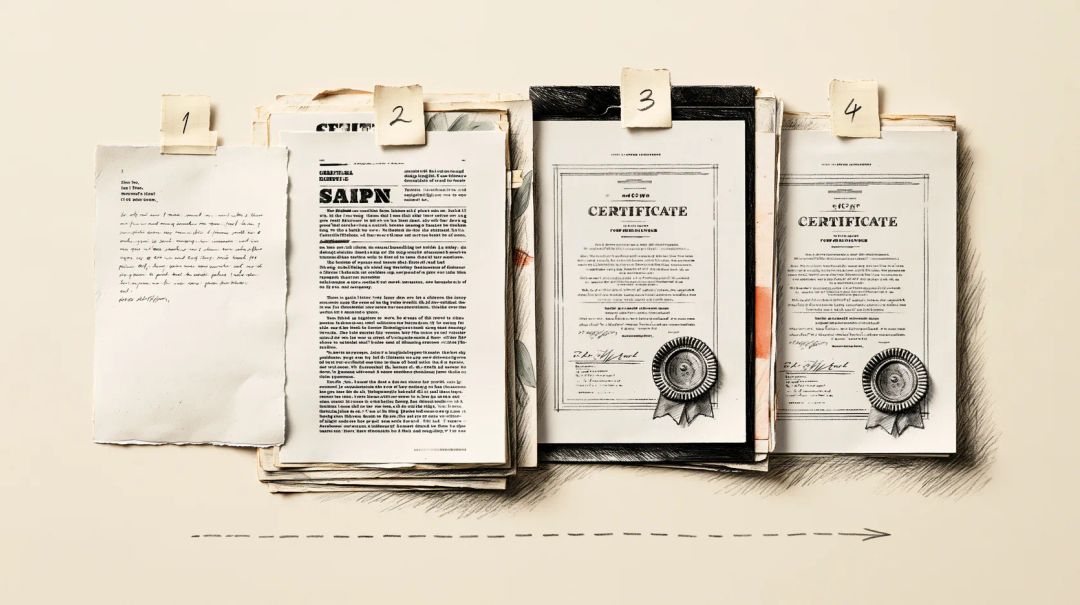
Conventions differ between countries. In German-speaking countries, for example, an application often starts with a cover page, and references follow from newest to oldest. When the ad lists the documents in a particular order, use that order.
Step 1: Save each document as a PDF
Export from the app you wrote the document in. That keeps the text real text, which matters for the recruiter’s search and for any system that reads your CV.
- Microsoft Word for Windows: File > Save a Copy (or Save As), choose PDF, then More options > Options. Tick Create bookmarks using and choose Headings, so your section headings become bookmarks in the PDF. Microsoft notes that the browser version, Word for the web, makes a basic PDF without bookmarks.
- Google Docs: File > Download > PDF Document (.pdf). There are no export options, so you get no bookmarks.
- LibreOffice Writer: File > Export As > Export as PDF. On the General tab, Export outlines turns headings into bookmarks.
- No Word on this computer: Word to PDF converts DOCX and DOC files on our server. The file is uploaded only after you press the convert button, and you choose when the result is deleted.
A downloaded CV template brings along more than its layout. In our test, a CV made from an invented template went into the PDF with the template’s title, “Modern Resume Template”, and its designer as the author. Merging the files, as described below, drops these properties. For a document you send on its own, see how to remove a name from a PDF.
Step 2: Turn certificates into PDF pages
Paper certificates. A phone scanner gives you a cropped, flattened page instead of a photo of a desk. On an iPhone, open the Files app, tap More (…), then Scan Documents, and save the scan; Apple describes the same scanner in Notes, under the paperclip button (Apple Support). On Android, open the Google Drive app, tap the camera button, scan the pages, tap Done and choose PDF before you save (Google Drive Help).
Photos you already have. JPG to PDF puts each picture on its own page. Choose the same Page size as your CV, A4 or US Letter, and leave Orientation on Auto. Phone photos often carry the GPS position where they were taken, which for a certificate is usually your home. In our test, a 12-megapixel photo with a location and a “rotate” flag became an upright A4 page; neither the location nor the phone model made it into the PDF. If you send the photos themselves, read how to remove location from iPhone photos first.
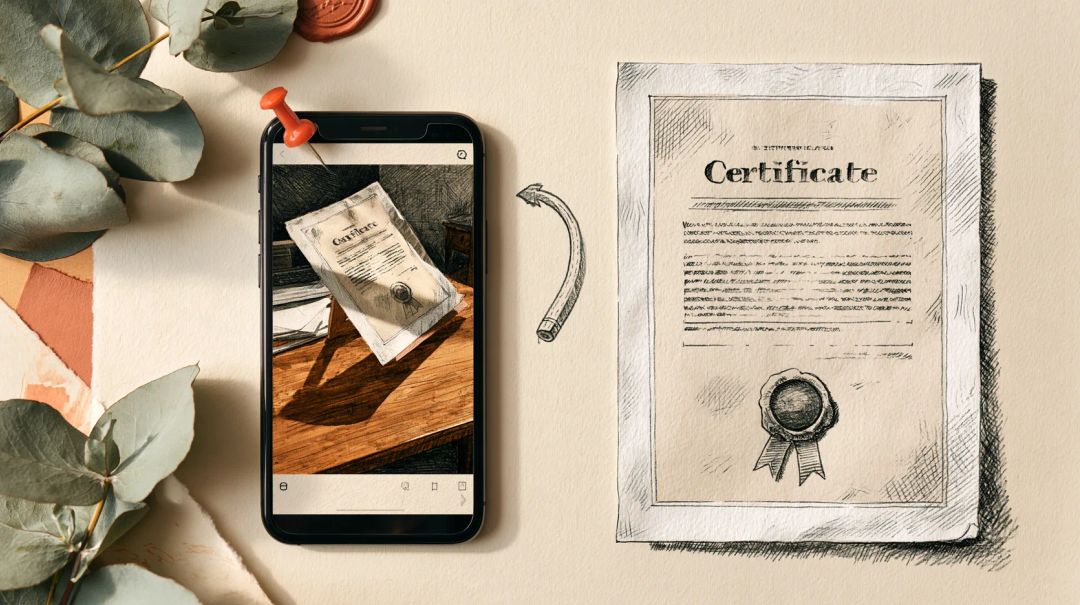
Certificates you downloaded as PDFs. Use them as they are. A certificate in landscape format can stay landscape; every viewer shows it the right way round. Turn pages only when a scan came out sideways, with Organize PDF.
Password-protected or signed files. Some universities send transcripts with a password. Merge PDF asks for it and opens the file on your device; the combined file has no password. A digitally signed certificate is a different case: any change to the file, merging included, breaks the signature, and Merge PDF warns you about it. If the employer needs to verify the signature, attach the original as well.
Step 3: Merge the files in order
Open Merge PDF, add all the files, drag them into the order from above and press Merge PDF. Pages are copied as they are: text stays selectable and photos are not recompressed. The merge runs on your device, so the files are not uploaded, and you can check that yourself.
About bookmarks: Merge PDF carries over the bookmarks each file already has and points them at the right pages. It does not add a new bookmark for each file. In our test, the three section headings of the CV came through as bookmarks, while the cover letter and the certificates had none. For a five-page application that is fine. For a longer one, style the first line of every document (“Cover letter”, “CV”) as a heading before you export it, and each one gets its own bookmark.
If a page ended up in the wrong place, or a scan picked up an empty back side, fix it with Organize PDF. On a Mac, Preview can also combine PDFs: choose View > Thumbnails and drag pages from one document’s sidebar into another’s (Apple Support). Preview saves changes automatically, so duplicate the files first.
Step 4: Get under the size limit
Portals usually state the limit next to the upload field. LinkedIn, for example, recommends keeping a resume under 2 MB.
Text pages weigh almost nothing. Photos are what make an application heavy. Our five-page test file came to 3.6 MB, and almost all of that was the one photographed certificate. Compress PDF with a 2 MB target brought it down to 1.05 MB. The photo was recompressed at very high quality, the text stayed selectable and the bookmarks stayed in place. A 1 MB target gave 829 KB.
Don’t choose Pages as images for an application. It turns every page into a picture: our file shrank to 199 KB, but the text could no longer be selected or searched, and the bookmarks were gone. If your CV only exists as a scan, make it searchable with OCR PDF, which recognises English and Russian text.
Step 5: Name the file and give it a title
Rename the file so it makes sense in someone else’s downloads folder: Jane-Doe-Application-Data-Analyst.pdf, not merged (3).pdf or CV_final_v2.pdf.
A merged PDF has no title of its own. You can add one with Edit PDF metadata: the title, for example “Jane Doe – Application for Data Analyst”, and your name as the author. The viewers built into Chrome and Firefox show the title in the browser tab.
Do this last. Compress PDF removes the document properties by default. In our test, a title added before compressing was gone afterwards. If you need to compress after setting the title, turn off Remove metadata under More options.
Check the file before you submit
Open the final file, not the one before it, and go through it:
- Order and orientation. Scroll through every page: right order, nothing sideways, no empty back sides.
- Text. Press Ctrl+F (Cmd+F on a Mac) and search for your name or a skill from your CV. If nothing is found, the page is an image.
- Size. Compare the file size with the portal’s limit. A limit of 2 MB means 2,000,000 bytes on some sites and 2,097,152 on others, so leave a little room.
- Properties. Open the document properties in your PDF viewer and check the title and author for a template’s name or someone else’s.
- Name. The file name should say who you are and what the file is.
How we tested
In October 2026 we built an application for an invented person, Jane Doe: a cover letter and a CV exported from LibreOffice 25.2 with a template’s title and author in their properties, a landscape course certificate in US Letter format, a transcript protected with a password, and a 4.6 MB, 12-megapixel phone photo of a paper certificate with a location and a rotation flag in its EXIF data. We ran the files through Hushdesk’s JPG to PDF, Merge PDF, Compress PDF and Edit PDF metadata and inspected every result with qpdf, pikepdf, poppler and ExifTool: page sizes, bookmarks, document properties, image data and extractable text.
Short answers
Should the cover letter go before or after the CV? Before, unless the employer asks for a different order. The letter explains the rest of the file.
Does merging reduce the quality of my documents? No. Merge PDF copies the pages as they are. Only compression changes images, and only if you run it.
Can I combine the files on my phone? Yes, Merge PDF works in a mobile browser. Large scans need memory, and on an older phone the tool tells you before it starts if the files are too big.
Why is my combined PDF so large? Usually because of photos or scans saved at full camera resolution. Scanning certificates with a document scanner, or compressing to the portal’s limit, fixes it.
Will the employer see that I used a template? Not from the merged file’s properties: Merge PDF doesn’t copy them. A PDF you send on its own keeps whatever the template wrote into it, so check its document properties.
Should I add page numbers? For a long application, yes. Add page numbers after merging, so they run through the whole file.