How to remove location from iPhone photos
Every photo your iPhone takes can carry the exact spot where it was taken. Here is how to share pictures without it, clean the ones you already have, and stop recording it at all.
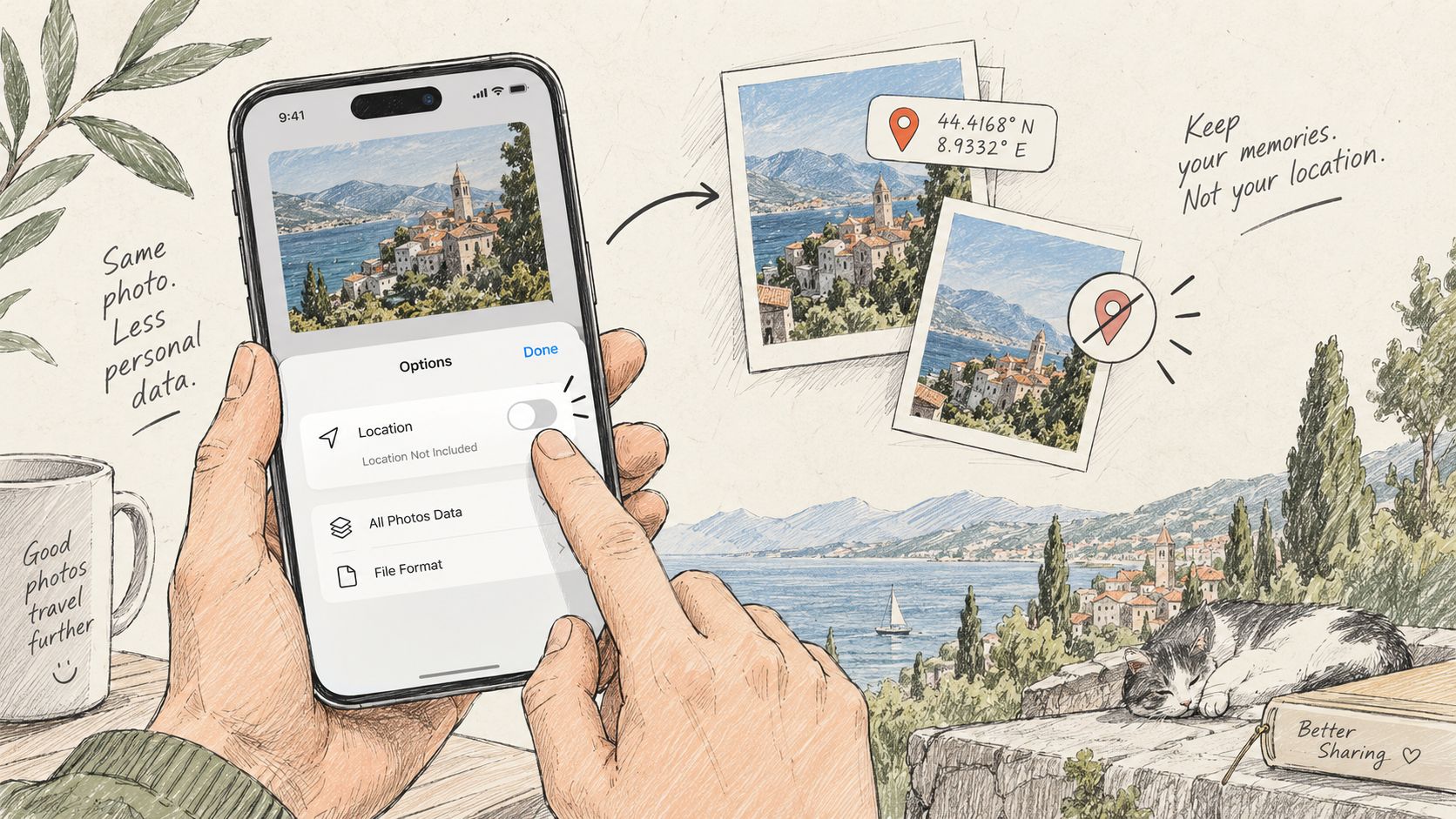
What your iPhone stores in a photo
When the Camera app may use Location Services, every photo gets GPS coordinates written into its metadata (EXIF): latitude, longitude, altitude and often the direction the camera faced. The Photos app uses them for its map and for Memories.
The problem starts when the original file leaves your phone. Anyone who receives it can open its details and see the place on a map, accurate to a few metres: your home, your child’s school, your office.
Not every way of sending keeps this data. Many messengers recompress a photo and drop its metadata. But the original file, coordinates included, usually goes out when you send it as a file or document, by email, with AirDrop or as an iCloud link. The safe habit is to decide for yourself every time.
Method 1: turn off location when you share
The quickest way, and it leaves your library as it is.
- Open the photo in Photos, or select several, and tap the Share button.
- At the top of the share sheet, tap Options.
- Turn off Location. The sheet now says Location Not Included.
- Share as usual: AirDrop, Messages, Mail or any other app.
The switch affects only the copies you send now. The photos in your library keep their location, so check the switch each time you share.
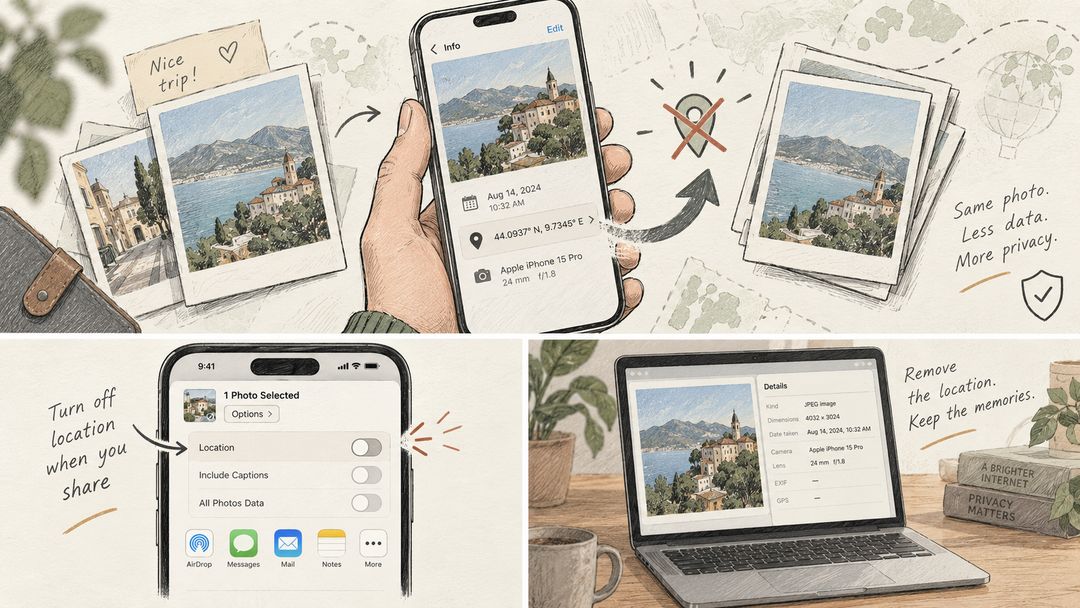
Method 2: delete the location from photos you already took
- Open the photo in Photos.
- Tap the More button (three dots). In recent versions of iOS, tap Adjust Info, then Adjust Location. In some earlier versions, swipe up instead and tap Adjust under the map.
- Tap No Location.
To clean many photos at once, tap Select in your library, tap the photos you want, then tap the More button and continue with the same steps.
The photo disappears from the map in Photos, and copies you share later carry no coordinates.
Method 3: stop saving the location in new photos
- Open Settings > Privacy & Security > Location Services.
- Tap Camera.
- Choose Never.
New photos will have no coordinates. Photos you took earlier keep theirs until you delete it with Method 2.
There is a trade-off: the map in Photos and location-based Memories will only show your older pictures. If you like those features, keep location on and use Method 1 whenever you share.
Photos that are already on a computer
Files copied from an iPhone with AirDrop, a cable or from iCloud keep their coordinates. You can clean them in your browser without installing anything:
- Remove the location deletes only the GPS data and keeps the date and camera details, so your albums still sort correctly.
- Remove EXIF data removes supported metadata fields. Visible details can still identify people or places.
Both work with JPG, PNG and WebP, take a whole batch at once and run on your device: Hushdesk never uploads the photos.
iPhones save photos as HEIC by default. If you need JPG files, choose Settings > Camera > Formats > Most Compatible before you take the pictures. For photos copied over a cable, Settings > Apps > Photos > Transfer to Mac or PC > Automatic delivers JPG files (before iOS 18 the Photos settings sit directly under Settings).
How to check that the location is gone
- On iPhone: open the photo in Photos and swipe up, or tap the Info button. No map means Photos is not displaying a location; it does not rule out hidden or unsupported metadata.
- On Windows: right-click the file, choose Properties and open the Details tab. The GPS section should be missing.
- On a Mac: open the file in Preview and choose Tools > Show Inspector. A GPS tab appears only when the file has coordinates.
- In the browser: Remove the location tells you for each file whether it found coordinates.
Short answers
Do screenshots contain my location? No. iPhone screenshots are not geotagged.
Do messengers remove the location? Often, when you send a photo as a picture, because the app recompresses it. When you send it as a file or document, the original goes out with its coordinates. Apps behave differently and change over time, so turn off Location in the share sheet anyway.
Does removing the location change the picture? No. Only the metadata changes; the image looks exactly the same.
Can I get the location back? On iPhone, yes: open Adjust Location again and choose a place. A copy you have already sent without coordinates stays without them.